Monday, January 5, 2026

Performance testing in Android applications with Flashlight tool


https://flashlight.dev/ is a very good tool to conduct performance tests for android devices, also this can be incorporate with existing WebdriverIO or Appium tests.


Below is a high-level flowchart on how you can upgrade existing flashlight report to integrate with a BDD appium test.


Green-colored items represent the default Flashlight steps, while blue-colored items indicate the features I developed to integrate Flashlight with Appium Inspector to display the test steps

Monday, August 25, 2025

@esbuild/darwin-arm64 and @esbuild/darwin-x64 npm build issue


Original error when building the project.

Specifically the "@esbuild/darwin-arm64" package is present but this platform needs the "@esbuild/darwin-x64" package instead. People often get into this situation by installing esbuild with npm running inside of Rosetta 2 and then trying to use it with node running outside of Rosetta 2, or vice versa (Rosetta 2 is Apple's on-the-fly x86_64-to-arm64 translation service).


Clear old binaries

Remove the incorrect esbuild install:

rm -rf node_modules/esbuild node_modules/@esbuild


Reinstall with matching architecture

    • If you want ARM64 (Apple Silicon, recommended):

      arch -arm64 npm install esbuild
    • If you want x64 (Intel / Rosetta):

      arch -x86_64 npm install esbuild
  • Ensure Node matches

    • Check what architecture your Node process is:

      node -p "process.arch"


  • Friday, March 14, 2025

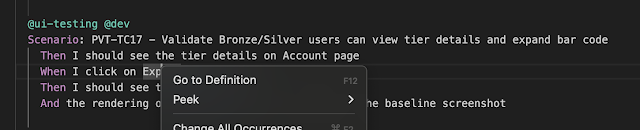
    How to navigate to step definition from the feature file in VS code


    • Install Cucumber for Visual Studio Code plugin
    • Go to the settings of the plugin.
    • Locate the cucumber. Features setting  and click on Edit in Settings.json.


    • This will open the settings.json file under Application Support/Code/User (On mac)
    • Basically, this is not the settings file you can find inside the .vscode/settings.json file at your project.

    • Add the exact format of the feature files are available.


    • Then at the same file, locate cucumber.glue.
    • If not, add a new entry as for the below format.

    • Save and restart the VS Code.

    • Now you should be able to navigate to the step definition quickly from your feature file.

    Tuesday, February 25, 2025

    How to implement screen shot comaprison with WebdriverIO

     Get the Visual service to your wdio.conf file.

     services: [

        [

          "visual",

          {

            baselineFolder: path.join(process.cwd(), "snapshot", "baseline"),

            formatImageName: "{tag}-{width}x{height}",

            screenshotPath: path.join(process.cwd(), "screenshot"),

            savePerInstance: true,

            addIOSBezelCorners: true,

          },

        ],

      ],


    Then use below code to validate.

    It will be something like:

      const element = WishlistScreen.EllipsisItemList();

      const formattedElementName = elementName.replace(/ /g, "-").toLowerCase();

      // Verify the snapshot of the element

      await expect(element).toMatchElementSnapshot(`${global.brand.toLowerCase()}-${formattedElementName}`, 8);


    Thursday, May 9, 2024

    Jmeter to Grafana dashboard using core influx DB back end listener.

     Important things.

    1). Make sure to set influxdbToken at the jmeter influx DB back end listener

    Get the token:


    2). URL need to be have below format:

    http://localhost:8086/api/v2/write?org=cja&bucket=jtest

    • Highlighted Properties must available to view transactions at the Grafana dashboard.
    • Set summary Only to True to get transaction level details at Grafana.


    3). Make sure to import valid Grafana template.

    Because only dashboard ID 5496 was using core influx DB back end listener.


    4). Make sure to set "Authorization" header "Token <ur token>" at grafana data source configuration.

    5). Also set the correct database name. Its the bucket name at InfluxDB


    Uploading: 88615 of 88615 bytes uploaded.


    Monday, April 8, 2024

    Fix - javax.net.ssl.SSLHandshakeException: PKIX path building failed: sun.security.provider.certpath.SunCertPathBuilderException: unable to find valid certification

    Download the certificate from the web browser and install it using keytools.

    Click on "Connection is secure"


    Click on certificate is valid.

    Click on export and save it to your hard disk


    Open CMD and type below command.

    keytool -import -alias ANY_NAME_YOU_WANT_TO_GIVE -file PATH_TO_YOUR_CERTIFICATE -keystore PATH_OF_JAVA_KEYSTORE


    PATH_OF_JAVA_KEYSTORE - file will be available at C:\Program Files\Amazon Corretto\jdk11.0.20_9\lib\security


    If the keytools are not recognize as a valid command, add java/bin folder to your system environment variable paths.

    Sunday, March 24, 2024

    How to execute selenium test in Github Actions

     Create a simple Maven TestNG Selenium project as below.


            System.setProperty("webdriver.chrome.driver", "/usr/local/bin/chromedriver");

            ChromeOptions chromeOptions = new ChromeOptions();

            chromeOptions.addArguments("--headless");

            driver = new ChromeDriver(chromeOptions);

            driver.get("https://www.xxxx.com/playlists");

            WebElement element = driver.findElement(By.xpath("(//*[@class='yt-simple-endpoint style-scope ytd-playlist-thumbnail'])[4]"));

            element.click();

            driver.quit();


    Make sure to give a correct web driver path when you are testing the code in our local environment.

    We will change it when we deploy it to GitHub actions.


    Now push your code GitHub and enable actions from the project settings section.


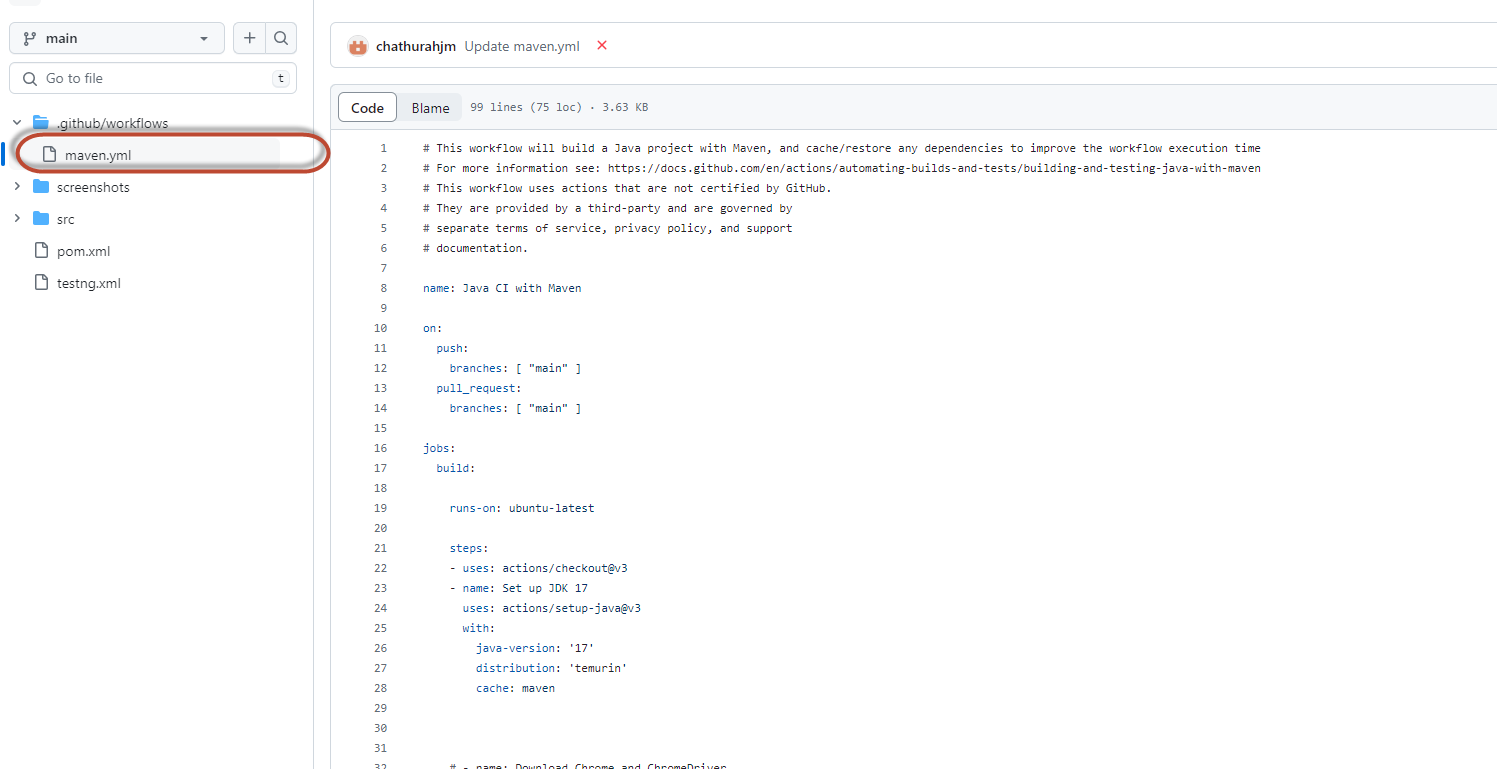
    Create a new yml file which will automatically generate when you select maven build project.

    There will be a new yml file available as for the below screen shot.


    In adition to default content I have to add

    • Chrome driver
    • Chrome web browser

    This is the code to download above from the yml file.

     # Download Chrome version 114.0.5735.90

        - name: Download ChromeDriver

          run: | 


              # Download Chrome version 114.0.5735.90

              wget -q "https://dl.google.com/linux/chrome/deb/pool/main/g/google-chrome-stable/google-chrome-stable_114.0.5735.90-1_amd64.deb" -O chrome.deb

              # Install Chrome

              sudo dpkg -i chrome.deb

              # Install dependencies

              sudo apt-get install -f

              # Clean up

              rm chrome.deb

              LATEST_CHROMEDRIVER_VERSION=$(curl -s "https://chromedriver.storage.googleapis.com/LATEST_RELEASE")

              wget "https://chromedriver.storage.googleapis.com/${LATEST_CHROMEDRIVER_VERSION}/chromedriver_linux64.zip" -P ~/

              unzip ~/chromedriver_linux64.zip -d ~/ && rm ~/chromedriver_linux64.zip

              sudo mv -f ~/chromedriver /usr/local/bin/chromedriver

              sudo chmod +x /usr/local/bin/chromedriver


    Then add below code to execute the test.

        - name: Build with Maven

          run: mvn clean install -B


    You can find the full code with copying screen shots  at https://github.com/chathurahjm/gitActionWIthScreenShots


    Friday, March 1, 2024

    How to execute custome jar file in JMeter

    1). Create your jar file using Eclipse.

    2). Because Eclipse will allow you to convert a single java method (without any main method) to a jar file.

    • Package name  : tempDBUpdate
    • Class name : update
    • Method name : updatedb

    All my libraries are inside reference Libraries folder.


    3). Convert to a jar file by right-click on your project → select Export → Select JAR file under java folder.


    4). Move the newly generated jar file to JMeter \apache-jmeter-5.6.3\apache-jmeter-5.6.3\lib\ext folder.

    5). From open JMeter and add a JSR223 Sampler

    6). Set language as groovy

    7). Import the jar file as for the line number 1.

    8). Create an object of the class as for the line 3.

    9). Call the method.


    Dont use Main method to call in J Meter as it will give errors and it will not call the actual Main method implementations.

    Don't use IntelliJ to cremate jar files as IntelliJ only allow Main method to convert to jar file.


    Monday, February 19, 2024

    How to re execute failed Selenium / Playwright Java testcases with the help of TestNG

    1. Create a new class with any name at the test project.
    2. With this class we are going to implement the IRetryAnalyzer class which is available with TestNG
    3. Here is the sample working implementation.
    import com.novatti.common.Constants;
    import org.testng.IRetryAnalyzer;
    import org.testng.ITestResult;

    public class RetryAnalyzer implements IRetryAnalyzer {

    private static int maxTry = 3;
    private int count = 0;

    @Override
    public boolean retry(ITestResult iTestResult) {
    System.out.println("------------------------ Retrying test: " + iTestResult.getName());
    if (!Constants.IS_RETRY) maxTry = 0;

    if (!iTestResult.isSuccess()) {
    if (count < maxTry) {
    count++;
    iTestResult.setStatus(ITestResult.FAILURE);
    return true;
    } else {
    iTestResult.setStatus(ITestResult.FAILURE);
    }
    } else {
    iTestResult.setStatus(ITestResult.SUCCESS);
    }
    return false;
    }
    }

    4. Then create another class to make all our rest methods and test classes to transform to above class at the run time.
    Or we can manually update each test method which is not the best approach.

    5. From the new class we are going to implement IAnnotationTransformer  interface which is inbuilt with TestNG.

    6. Here is the sample working implementation.

    import com.novatti.utils.RetryAnalyzer;
    import java.lang.reflect.Constructor;
    import java.lang.reflect.Method;
    import org.testng.IAnnotationTransformer;
    import org.testng.annotations.ITestAnnotation;

    public class TestNGRetryListener implements IAnnotationTransformer {
    @Override
    public void transform(
    ITestAnnotation annotation, Class testClass, Constructor testConstructor, Method testMethod) {
    annotation.setRetryAnalyzer(RetryAnalyzer.class);
    }
    }

    7. Now add the above class as a listner to your testNG.xml file.
    8. Here is the sample working implementation.

    DOCTYPE suite SYSTEM "http://testng.org/testng-1.0.dtd">
    <suite name="UI Test Suite">
    <listeners>
    <listener class-name="com.XXXXXX.listeners.TestNGRetryListener"/>
    </listeners>
    <test verbose="1" preserve-order="false" name="UI Tests">
    <classes>
    <class name="com.xxx.tests.XXXXX"/>
    <class name="com.xx.tests.XXXXXXXX"/>
    <class name="com.xx.tests.XXXXXX"/>

    </classes>
    </test>
    </suite>


    9. Now everytime when you tigger the testNG.xml file it will listen to the TestNGRetryListener   
    class and pick the failed testcases.

    10. Then it will retry for the count you have set at the maxTry variable.
    private static int maxTry = 3;

    I'm with Test NG version 7.9.0


    Thursday, April 20, 2023

    How to wait till page load selenium Java.

     public void waitTillDocumentStateReady()

    {
    LocalDateTime now = LocalDateTime.now();
    while (LocalDateTime.now().isBefore(now.plusSeconds(20))) {
    while (!((JavascriptExecutor) driver.getDriver()).executeScript("return document.readyState").equals("complete")) {
    driver.sleep(1);
    }
    }
    }

    Monday, November 14, 2022

    While loop with specific time to wait until element get displayed in selenium C# and java

     public static void waitForOneTrust()

            {

                var stopwatch = new Stopwatch();

                stopwatch.Start();


                while (stopwatch.Elapsed < TimeSpan.FromSeconds(30))

                {

                    IWebElement oneTrust = driver.FindElement(By.Id("onetrust-accept-btn-handler"));

                    if (oneTrust.Displayed)

                    {

                        break;

                    }


                }

            }


    In Java:

    public void waitTillBackOfficePageLoad()
    {
    LocalDateTime now = LocalDateTime.now();
    while (LocalDateTime.now().isBefore(now.plusSeconds(30)))
    {

    if(
    xxxxxx)
    {
    break;
    }

    }
    }

    Tuesday, November 16, 2021

    Fix:Postman Export Is Not Working With C# Rest Client

    When I initially export the API call from postman I didn't get the yellow highlighted lines.

    I had to manually add those 2.

    Then only this start working on C# Rest client.

    So make sure to add headers when importing Request from Postmant to C# or other language.


    var client1 = new RestClient("https://qtm4j-cloud-prod-4.s3.amazonaws.com/");

                client1.Timeout = -1;

                var request = new RestRequest(Method.POST);


                request.AddHeader("apiKey", "" + APIKey+ "");

                request.AddHeader("Content-Type", "application/json");

                request.AddHeader("Content-Type", "multipart/form-data");

                request.AddParameter("acl", "authenticated-read");

                request.AddParameter("key", "" + key + "");

                request.AddParameter("policy", "" + Policy + "");

                request.AddParameter("success_action_status", "201");

                request.AddParameter("x-amz-algorithm", "AWS4-HMAC-SHA256");

                request.AddParameter("x-amz-credential", "" + Credential +"");

                request.AddParameter("x-amz-date", "" + Date + "");

                request.AddParameter("x-amz-signature", "" + signature + "");

                request.AddParameter("x-amz-Meta-file-name", "" + FileName + "");

                request.AddParameter("x-amz-Meta-b", "" + Meta_b+ "");

                request.AddParameter("x-amz-Meta-a", "" + Meta_a + "");

                request.AddParameter("x-amz-Meta-c", "" + Meta_c + "");

                request.AddParameter("x-amz-Meta-tc-id", "" + TC_ID + "");

                request.AddParameter("x-amz-Meta-tc-version-id", "" + VersionID + "");

                request.AddParameter("x-amz-Meta-tc-version-no", "" + TC_Version_No + "");

                request.AddFile("file", FileLocationName);

                try

                {

                    IRestResponse response = client1.Execute(request);


                    if (response.Content.ToString().Contains("</Location><Bucket>"))

                    {

    Tuesday, June 8, 2021

    Publish your github project to sonarcloud.io

     1). Go to sonarcloud.io and click on the "+" icon at the top of the screen.


    2). Then click on the Choose an organization on GitHub

    3). You will be redirected to your GitHub account and from there you have to select the repository which include your project.(From here you will give permissions to SonarCloud, to access the repositorys)


    4). Then you will re-direct to SonarCloud and you will see something similar to this.

    5). Select with GitHub actions

    6). Then will navigate to an instruction page.

    7). Follow the 1st instruction as it is.

    8). Add below aditionl command to the build.gradle file. (Source can be any thing,This can be different based on your project structure)
    property "sonar.sources", "."

    After step 8 I had only sonar related things in my build.gradle file, Becouse I had few errors when try to update my existing build.gradle file with sonar settings.

    9). Next follow the 2nd step. If you don't have a workflows folder inside .github, please create it manually and just copy and paste the content as it is.


    10). Then do some changes to any of your code and make a commit.

    11). Navigate to Actions menu.


    12). Because of your commit, an action should be triggered.

    13). If all the above steps are correct you should see the build log and there should not be any errors.


    14). Finally, navigate back to https://sonarcloud.io/  you should see the dashboard with all the details.


    Tuesday, December 8, 2020

    How to set M2 path ans install Maven on macOS Catalina v 10.14.XX

     On previous mac Operating systems we just download the Maven and add path to .bash_profile file inside the user path.

    That's because when we open a terminal from mac it opens a bash type of terminal as on the below image.


    But with the latest macOS bash type terminals are no longer available.

    Now we have zsh type of terminals.


    There for even you add paths to .bash_profile Maven is not going to work.

    So you have to edit .zshrc file inside your users folder.


    So locate the .zshrc file or if not create a new file and add below lines to the .zshrc file.(As you normally do with .bash_profile file).

    export M2_HOME=/Users/<your profile name>/Documents/Data/apache-maven-3.6.3
    export PATH=$PATH:/Users/<your profile name>/Documents/Data/apache-maven-3.6.3/bin

    Thursday, October 22, 2020

    Copying Rest API command from Postman is not working in C# RestSharp? Here is the fix!

     As we all know if we click on the code button as on the image we can convert the Postman command to any sort of programming language.


    Here are some languages we can convert the code.


    But if you directly copy and past the code for C#-RestSharper then your code might not work.

    There won't be any exceptions, But you will not get the response that you are expecting.

    It always returns NULL response.


    To make it work you have to do some adjustments.

    Below is the original code and just comment the highlighted line which is  request.AddHeader("Connection", "keep-alive");


    Actually to get this code work you need to add "using RestSharp" to your C# code.

    Other thing is no need to add all these headers to get a valid output, You can simplify the above code by only having below lines.

    request.AddHeader("Authorization",....);

    request.AddHeader("Content-Type", "application/json");


    Monday, August 3, 2020

    How to change IP address time to time from selenium C#


    1.  [TestMethod]
    2.         public void ChromOptions()
    3.         {

    4.             string[] proxies = { "206.198.131.142:80", "51.81.112.164:5836" };

    5.             for (int i = 0; i < proxies.Length; i++)
    6.             {
    7.                 ChromeOptions options = new ChromeOptions();
    8.                 options.AddArguments("--proxy-server="+proxies[i]+"");
    9.                 driver = new ChromeDriver(@"C:\ChromeDriver1\", options);
    10.                 driver.Navigate().GoToUrl("https://whatismyipaddress.com/");

    11.             }
    12.         }

    Above is a C# code to switch your browser IP.
    At line 5 you have to give a list of working proxy IP and the PORT list as an array.

    Thats it.

    Sunday, June 21, 2020

    How to move files from all the sub directorys to another which dont no the directory name

    I had an issue where I need to move some files from one folder to another folder but the challenge was the source folder name get change time to time.
    Basically the folder name will be a random GUID.

    So I was unable to stick to a simple windows batch command because I don't n know the exact source folder name where my files available.

    So this is a simple solution for that.
    Just download the below EXE file and pass the arguments as it shows.

    Basically what it does was extract everything from subfolders (what ever the sub folder name) on a given folder and place them on another folder.

    https://drive.google.com/file/d/1v-JbHRvzXdfpMYfpZoAvEetLx2Bdzi4E/view?usp=sharing

    MoveFiles.exe "source folder where your files stay" "Target folder where you want to move the files" "what kind of file extensions you need to move"

    MoveFiles.exe "C:\Development\XXX\XXX" "C:\Development\XXX\XXX"  "*.XXX"


    Thursday, June 18, 2020

    Dotnet Code Coverage for SonaQube

    It's not that much hard.
    If you are with dot net 2.0 or above then just execute the below command on your test project location.

    (where the XXX.Test.csproj available.)

    1).dotnet test --collect "Code Coverage"

    Then the tests will get to execute and at last there will be a coverage file available as on the test result folder.

    Attachments:
      C:\Program Files (x86)\Jenkins\workspace\Backend Dev\test\Api.Test\TestResults\88de1678-d457-4e6c-a3fd-2d5786cddc13\ar0_2020-06-18.10_24_43.coverage
    Total tests: 132. Passed: 66. Failed: 57. Skipped: 9.
    Test Run Failed.
    Test execution time: 44.3640 Seconds

    Then convert the .coverfile to coveragexml file using below command.

    2).CodeCoverage analyze /output:VisualStudiot.coveragexml  ar0_2020-06-18.10_24_43.coverage

    You can use below nuget command to download the CodeCoverage packages.

    dotnet add package Microsoft.CodeCoverage --version 16.6.1


    The just point the newly created coveragexml file to sonar server by below code.

    3).sonar.cs.vscoveragexml.reportsPaths=C:/Development/VisualStudiot.coveragexml

    Thursday, May 28, 2020

    How to open browser windows one by one with Jmeter selenium

    I had this issue with me when I'm working on a project.
    Because When I set thread count to 100 it will open 100 browsers and the CPU and other resource utilization going up.
    So unfortunately server will get hang.

    I have post the same issue in https://sqa.stackexchange.com/ but still I didn't get any proper solution.

    So I start my own to find a solution.
    Then I found

    You have to download below plugin to J meter.
    https://jmeter-plugins.org/wiki/ConcurrencyThreadGroup/


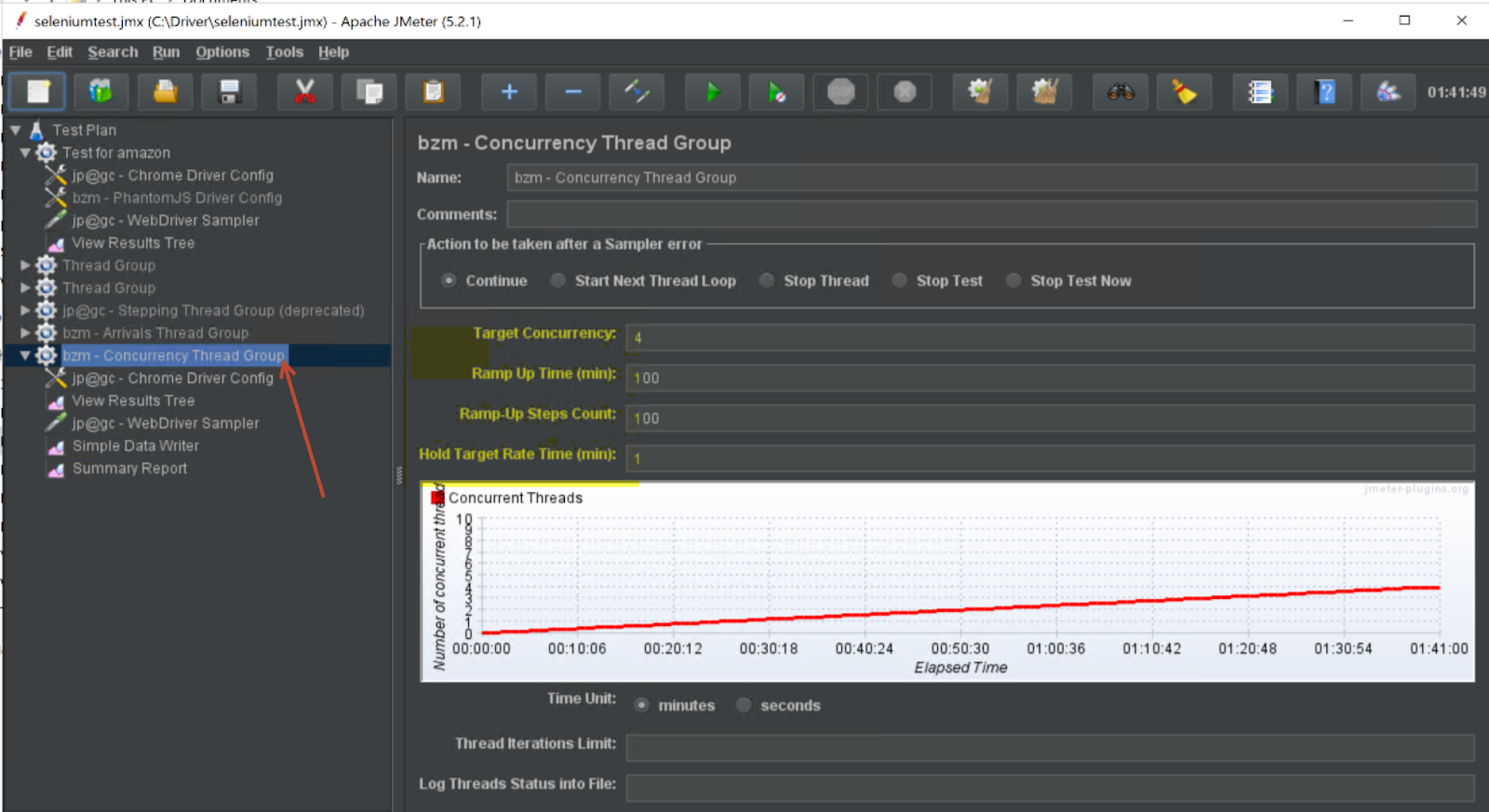
    • Add the bzm - Concurrency Thread Group.
    • Set the parameters as on the image.
    • So it will run for a couple of hours without eating your server resources.

    While its running you can do your other work.


    Sunday, January 12, 2020

    [FIX] The SMTP server requires a secure connection or the client was not authenticated. The server response was: 5.7.0 Authentication Required.

    I got above error when i try to send my test results at the [AssemblyCleanup] step on my automation test suite.
    This is how my code looks like.

     public static void SendEmail()
            {

                string fromAddress = "@gmail.com";
                string mailPassword = "";
                SmtpClient SmtpServer = new SmtpClient("smtp.gmail.com");
                SmtpServer.Port = 587;
                SmtpServer.EnableSsl = true;
                SmtpServer.DeliveryMethod = SmtpDeliveryMethod.Network;
                SmtpServer.UseDefaultCredentials = false;
                SmtpServer.Credentials = new System.Net.NetworkCredential(fromAddress, mailPassword);
              

                MailMessage myMail = new System.Net.Mail.MailMessage();
                myMail.From = new MailAddress("xxxx@gmail.com");
                myMail.To.Add("xxxx");
                myMail.To.Add("xxxx");

                myMail.Subject = " Test Results";
             
                String body = "Test Status";
                myMail.IsBodyHtml = true;
                myMail.Body = body;
                myMail.Attachments.Add(new Attachment(@"..\..\..\xx\Reports\xx.html"));


                SmtpServer.Send(myMail);

            }

    But still Im getting the above error so the solution was to enable Less secure app access by navigating to below URL
    https://myaccount.google.com/u/3/lesssecureapps?pli=1&pageId=none

    Then update your Gmail password to a very strong password.