Thursday, June 18, 2020

Dotnet Code Coverage for SonaQube

It's not that much hard.
If you are with dot net 2.0 or above then just execute the below command on your test project location.

(where the XXX.Test.csproj available.)

1).dotnet test --collect "Code Coverage"

Then the tests will get to execute and at last there will be a coverage file available as on the test result folder.

Attachments:
  C:\Program Files (x86)\Jenkins\workspace\Backend Dev\test\Api.Test\TestResults\88de1678-d457-4e6c-a3fd-2d5786cddc13\ar0_2020-06-18.10_24_43.coverage
Total tests: 132. Passed: 66. Failed: 57. Skipped: 9.
Test Run Failed.
Test execution time: 44.3640 Seconds

Then convert the .coverfile to coveragexml file using below command.

2).CodeCoverage analyze /output:VisualStudiot.coveragexml  ar0_2020-06-18.10_24_43.coverage

You can use below nuget command to download the CodeCoverage packages.

dotnet add package Microsoft.CodeCoverage --version 16.6.1


The just point the newly created coveragexml file to sonar server by below code.

3).sonar.cs.vscoveragexml.reportsPaths=C:/Development/VisualStudiot.coveragexml

Thursday, May 28, 2020

How to open browser windows one by one with Jmeter selenium

I had this issue with me when I'm working on a project.
Because When I set thread count to 100 it will open 100 browsers and the CPU and other resource utilization going up.
So unfortunately server will get hang.

I have post the same issue in https://sqa.stackexchange.com/ but still I didn't get any proper solution.

So I start my own to find a solution.
Then I found

You have to download below plugin to J meter.
https://jmeter-plugins.org/wiki/ConcurrencyThreadGroup/


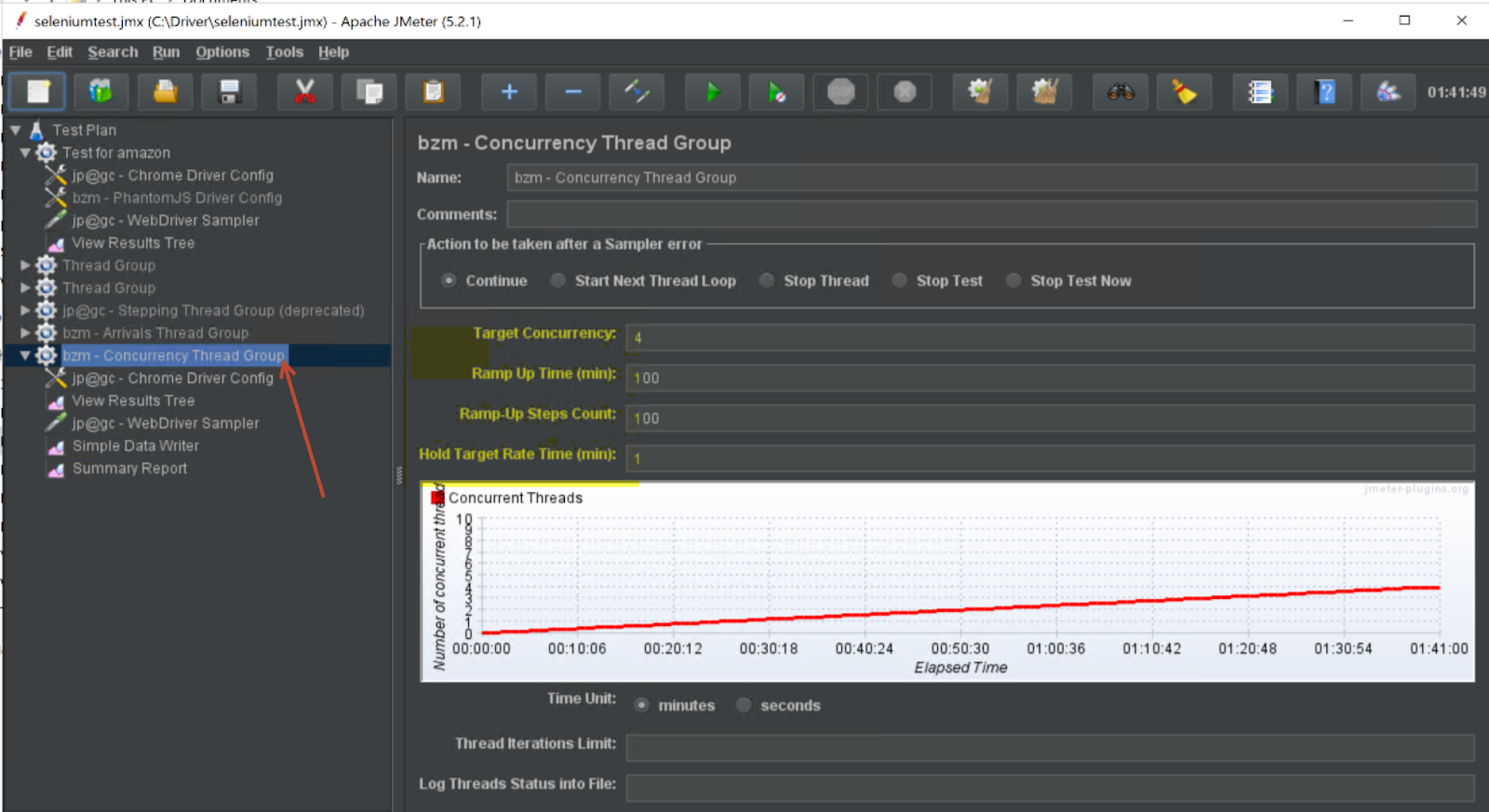
  • Add the bzm - Concurrency Thread Group.
  • Set the parameters as on the image.
  • So it will run for a couple of hours without eating your server resources.

While its running you can do your other work.


Sunday, January 12, 2020

[FIX] The SMTP server requires a secure connection or the client was not authenticated. The server response was: 5.7.0 Authentication Required.

I got above error when i try to send my test results at the [AssemblyCleanup] step on my automation test suite.
This is how my code looks like.

 public static void SendEmail()
        {

            string fromAddress = "@gmail.com";
            string mailPassword = "";
            SmtpClient SmtpServer = new SmtpClient("smtp.gmail.com");
            SmtpServer.Port = 587;
            SmtpServer.EnableSsl = true;
            SmtpServer.DeliveryMethod = SmtpDeliveryMethod.Network;
            SmtpServer.UseDefaultCredentials = false;
            SmtpServer.Credentials = new System.Net.NetworkCredential(fromAddress, mailPassword);
          

            MailMessage myMail = new System.Net.Mail.MailMessage();
            myMail.From = new MailAddress("xxxx@gmail.com");
            myMail.To.Add("xxxx");
            myMail.To.Add("xxxx");

            myMail.Subject = " Test Results";
         
            String body = "Test Status";
            myMail.IsBodyHtml = true;
            myMail.Body = body;
            myMail.Attachments.Add(new Attachment(@"..\..\..\xx\Reports\xx.html"));


            SmtpServer.Send(myMail);

        }

But still Im getting the above error so the solution was to enable Less secure app access by navigating to below URL
https://myaccount.google.com/u/3/lesssecureapps?pli=1&pageId=none

Then update your Gmail password to a very strong password.

Wednesday, January 8, 2020

WebDriver Wait - IMPLICIT & EXPLICIT

IMPLICIT - suggested though not directly expressed - Not the best practise.

driver.Manage().Timeouts().ImplicitWait = TimeSpan.FromSeconds(10);

An implicit wait is to tell WebDriver to poll the DOM for a certain amount of time when trying to find an element or elements if they are not immediately available. The default setting is 0. Once set, the implicit wait is set for the life of the WebDriver object instance.


EXPLICIT - stated clearly and in detail - The best practise.

in some cases, if any element is taking too much time to be visible on the software web page then you can use EXPLICIT WAIT condition in your test case.

Wednesday, December 4, 2019

Easy ways to identify elemants

IWebElement el4m = Driver.FindElement(By.CssSelector("input[type='button']value='Save User Roles']"));


IWebElement el4m = By.CssSelector
("button[onclick='new UserManagement().LoadExcelExportSearchResult();']")

Valid format for css selector for above format is :

The valid format is tag[attribute="value"]


Sunday, August 25, 2019

How to open exisiting chrome web browser ( with original History, Cache and Cookies ) using selenium C#

As we all know, when we say  driver = new ChromeDriver()
it will open a new chrome window with no Cache ,History or Cookies.

But in 1 day I had a requirement to open the existing google chrome web browser and continue my selenium tests on that browser.
So this is how I did it.


Go to chrome://version/ and locate the Profile Path.
Copy entire Default folder and copy it to some where else.

e.g- C:/Driver/test

then set your code like below.

ChromeOptions options = new ChromeOptions();
options.AddArguments(@"user-data-dir=C:\Driver\test");

driver = new ChromeDriver(options);

Monday, July 8, 2019

How to get a custome HTML report from Azure build pipeline for a unit test project

...This might not be the best option but it works for me...


Normaly you will have your test cases on a one test project.
In our case I add another project to the same soulution as on the below image.


That 2nd project will contain nessosory steps to:
  1. Locate the TRX file which is genarated by the Azure build pipeline (vstestconsol.exe).
  2. Convert that file to HTML.
  3. Email it to a given email address.
So the plan will be, I will copy the original TRX file to a different location / folder.
Rename the TRX file.
Then using "TrxerConsole.exe" genarate the HTML file and email it.

So as the 1st step add the 2nd project it will also a unit test type project.

Add below methods to your newly created unit test project which rename the original TRX.


        [TestMethod]
        public void RenameOrgTRX()
        {
            string sourcePath = @"d:\a\1\s\UnitTestProject1\CleanUp\ReportCreator\";
          
           string[] sourcefiles = Directory.GetFiles(sourcePath,"*.trx");

            foreach (string sourcefile in sourcefiles)
            {
                string fileName = Path.GetFileName(sourcefile);
                File.Move(sourcePath+fileName, sourcePath+"report.trx");
            }
        }

Then 2nd method to genarate the HTML file.
     [TestMethod]
        public void GenerateHTML()
        {
            Process proc = null;
            proc = new Process();
            proc.StartInfo.WorkingDirectory = @"d:\a\1\s\UnitTestProject1\CleanUp\ReportCreator";
           
            proc.StartInfo.FileName = "TrxtoHTML.bat";
            proc.StartInfo.CreateNoWindow = false;
            proc.Start();
            proc.WaitForExit();
        }

At this moment create a new folder at your 2nd project named "ReportCreator".
Then create a bat file inside the ReportCreator folder.

bat file will looks like this.
"TrxerConsole.exe report.trx" - So in side the bat file im calling TRXERconsole.exe which can convert trx to HTML.
Report.trx will be the TRX name.

At the 1st method we have successfully rename the autogenarated TRX file to report.trx so im sure that the TRX name will alwasy be the same.
After runinng this method you will get a HTML file named report.trx.html which is the final test report.


As the 3rd method add a send email method to send an email with attaching the newly created report.trx.html file.

 [TestMethod]
        public void SendEmail()
        {
            string fromAddress = "XXXXX@gmail.com";
            string mailPassword = "XXXX";
            SmtpClient SmtpServer = new SmtpClient("smtp.gmail.com");
            SmtpServer.Port = 587;
            SmtpServer.EnableSsl = true;
            SmtpServer.DeliveryMethod = SmtpDeliveryMethod.Network;
            SmtpServer.UseDefaultCredentials = false;
            SmtpServer.Credentials = new System.Net.NetworkCredential(fromAddress, mailPassword);

            MailMessage myMail = new System.Net.Mail.MailMessage();
            myMail.From = new MailAddress("XXXXX@gmail.com");
            myMail.To.Add("XXXX@gmail.com");
            myMail.To.Add("XXXX@tiqri.com");
        

            myMail.Subject = "TeckTalk";
            myMail.Body = "Please download the attached HTML file to view the API status";
            string attachmentFile = "d:\\a\\1\\s\\ReportGen\\NewFolder1\\report.trx.html";
            Attachment attachment = new Attachment(attachmentFile, MediaTypeNames.Application.Octet);
            myMail.IsBodyHtml = true;
            myMail.Attachments.Add(attachment);
            SmtpServer.Send(myMail);


        }


Lets create the pipeline.


This is how the pipeline looks like.
Red color task will be the original test task whic contain all the the unit tests.
Green task will be the copy file task.
Yellow task will contain 2nd test method which contain  Rename, GenerageHTM and SendEmail methods.

YOU ARE DONE.